A cash register connected to the computer
The cash register keeps its fiscal role: the fiscal memory, the electronic journal and the data sent to ANAF remain its own. RDN One sends it the receipt (items, prices, VAT rates and payments), and the register prints it. The X report and the Z report, cash in and cash out are also done from the program.
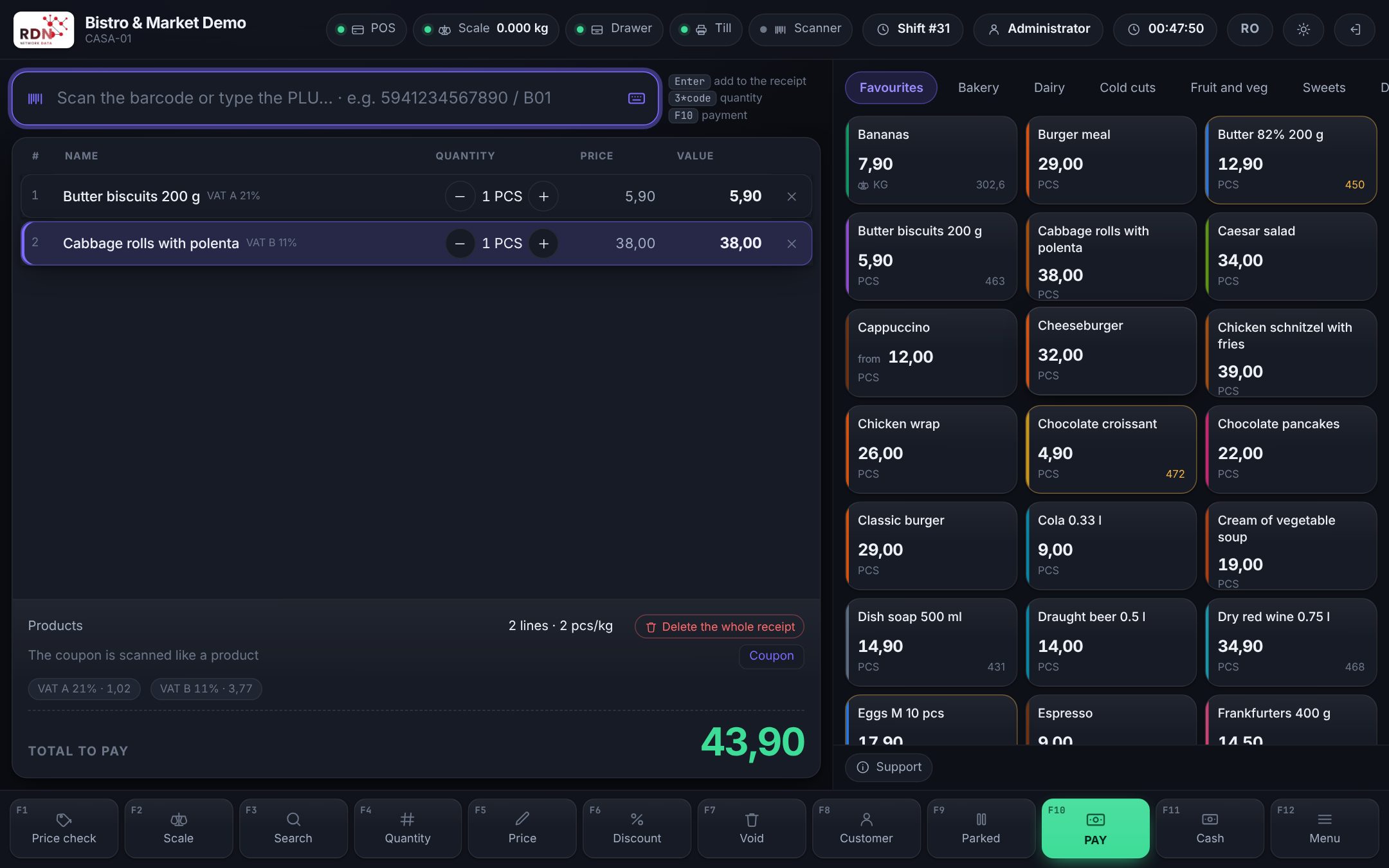
The cashier works on the computer screen, much faster than on the cash register keypad, and every receipt also goes into the stock and the reports.
Tremol M20, S21 and S25 cash registers
Tremol registers connect through ZFPLabServer, Tremol's free program, which keeps the connection to the register over the network (cable or WiFi) or over a USB cable. Switching from one to the other only means choosing another connection in the settings, with no other driver.
The driver follows Tremol's official protocol for Romania: fiscal receipt with VAT rates and units of measure, VAT number on the receipt, payments, X and Z reports, cash in and cash out, Z reports read from the register's journal and a fiscal memory report.
Datecs fiscal printers
The DP-25X, DP-150X, FP-700X and WP-500X models, as well as the older series without the X, connect over a serial or USB cable. The Datecs USB driver comes on the installation stick. RDN One prints the fiscal receipt, runs the reports, records cash in and cash out and opens the drawer.
Other fiscal printers
Do you have another cash register (Daisy, Partner or another model)? Tell us the model and we will confirm before the installation how it connects, for fiscal receipts and reports.
Dibal scales and scale labels
Dibal scales connect over RS-232 or USB, with several protocols. The stable weight goes straight onto the receipt, so the cashier no longer types the weight by hand.
Label scales at the counter (cold cuts, cheese, vegetables) print EAN-13 codes with the weight or the price in the code. RDN One reads them at scanning, using configurable templates.
The card terminal (the bank's POS)
The bank's terminal can be connected to the till: Banca Transilvania (SmartPay), Raiffeisen, DatecsPay, BCR, BRD, ING, UniCredit, CEC and other banks, once the bank enables the connection to the cash register. The amount goes to the terminal by itself, the customer pays, and the approved payment goes onto the receipt with the authorisation code; if the bank declines, the receipt stays open. We tell you what is needed for the connection before the installation, and we set it up.
Terminals with the ECR protocol (for example Ingenico, Verifone or PAX) can also be connected directly, by cable or over the network.
If the terminal is not connected, the amount is keyed into the terminal, and once approved the payment is confirmed in the program. On the fiscal receipt the payment still shows as card.
Scanner, cash drawer, kitchen printers and customer display
Any USB scanner that types like a keyboard works without a driver. For stock counts you can use Bluetooth readers or the phone camera. The cash drawer opens through the cash register or through an ESC/POS pulse.
Network ESC/POS thermal printers print the kitchen and bar tickets. The customer display (a second monitor or a tablet on the network) shows the products, the total and the change.
The status and settings of each device
In the top bar of the till, every device has its own light: green when it responds, red when it does not. The lights only show the status; clicking them changes nothing, so a cashier cannot break the connection to the cash register by mistake.
Device settings are in F12 > Settings > Peripherals service, for the administrator only: model, connection, port, speed, with presets for known brands. Before the cash register, scales or terminal are changed, the program warns and asks for confirmation. If a device is unplugged, RDN One reconnects by itself when it comes back.
What computer you need and how it is installed
A computer with Windows 10 or 11; we recommend a touch screen, where every field has an on-screen keyboard. The program runs locally and starts together with the computer.
Installation is done from a USB stick, without internet: the program, its components and the cash register drivers, in one step. You can do the installation, connect the equipment and bring in your items yourself, or we do it for a fee.