RDN One modules: the core included, the rest your choice.
The core of the program is always included. You add optional modules when you need them, without reinstalling, and their data stays even if you switch them off.
Scanning, internal code (PLU), quantity*code, weighing, discounts, parked receipts, returns, split payment with the change calculated from cash.
Core
Stock and product catalogue
Products with several barcodes, departments with a photo, VAT rates, units of measure, minimum stock and history. Import from Excel, CSV or SAGA.
Core
Fiscal printer and peripherals
Fiscal receipts, X and Z reports, deposits and withdrawals on the fiscal printer. Scale, scanner, payment terminal and drawer, with their status in the top bar.
Core
Sales reports
Sales by product, department, cashier, hour, payment method and VAT rate, with export. Z reports by period, for the accountant.
Core
Operators and permissions
Cashier, shift manager, administrator. The cashier sees only the sales screen; prices, discounts and settings stay with those who are allowed.
Core
The till the way you want it
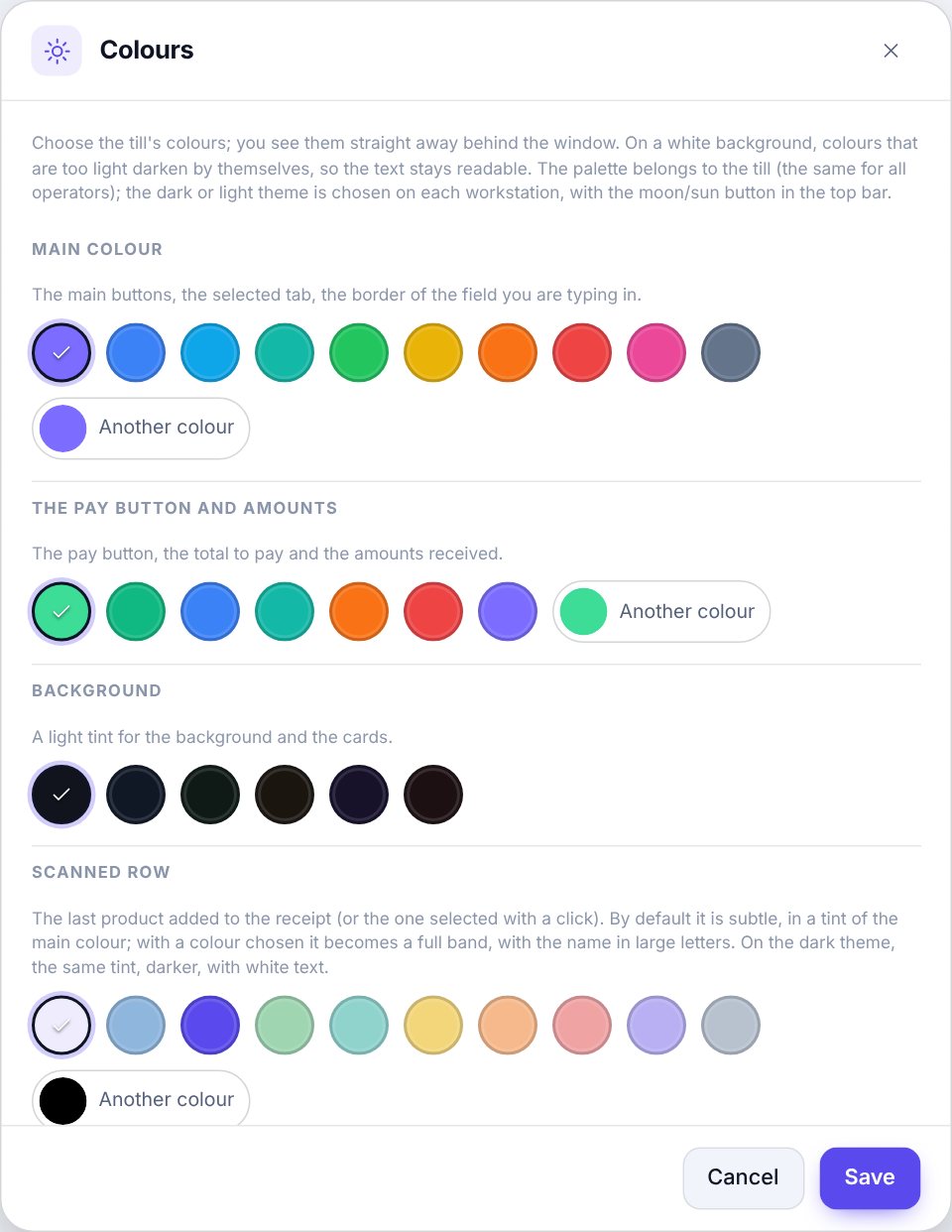
A touch screen with an on-screen keyboard in any field, the F1–F12 buttons chosen by you and the till's colours. Light or dark theme.
Your choice
The 21 optional modules.
A module that's switched off disappears from the menus, and its data stays. You switch it on again at any time.
Optional
Promotions
2+1 free, the second at half price, bundles at a fixed price, happy hour and coupons. The discount appears correctly on the fiscal receipt.
A SUNMI screen on which the customer orders alone, with photos and options, eat in or takeaway. Payment at the till, with the order number, or by card right at the kiosk.
Several stands of the same company: the order splits between the stands, each announces its ready part on the TV and hands it over separately. Sales report by stand.
Vehicle check-in with photos and a signature, estimates approved by the customer, mechanics on tablets, appointments, services and messages, the RAR register, invoice or fiscal receipt.
WooCommerce or Shopify: the till's stock and prices reach the website, and the website's orders come into the till.
Optional
Owner app
Sales, payments, Z reports, the drawer and the stock on the owner's phone, from anywhere.
Optional
Stock management reports
For the accountant: the stock management report, the cash book and the stock card, printed on A4 or exported to Excel.
Optional
Cloud backup
A backup of the till's data, encrypted, on the RDN Network Data server. If the disk fails, the data is put back, on a new computer too.
Optional
Customer display
A second screen facing the customer, with the products, the total and the change. On a monitor or a tablet on the network.
Optional
Multiple locations
The company's shops linked together: everyone's sales in one place, the stock in the others, goods transfers with a delivery note.
Click the modules you are interested in: they stay highlighted across the page. Click again to deselect one.
In detail
Every module, in detail.
What each part of RDN One does, who it helps and how it works in the shop or on the premises. Pick a module from the list to jump straight to it.
Core
Till sales
Who it is for: any shop, restaurant or fast-food outlet.
The sales screen is built for a queue. The cashier scans the barcode, types the internal code (PLU) or searches by name, and the item goes on the receipt with the price and VAT rate from the item list. The quantity is typed before the code (3*code), products sold by the kilogram come straight from the scales, and scale labels with the weight or price in the barcode are read automatically.
At payment, the cashier picks cash, bank card, meal vouchers, voucher, bank transfer or payment on the customer's account, or combines them on the same receipt. The change is calculated on the spot from the amount typed in. A receipt can be suspended for a customer who forgot something and picked up again when they return, and refunds are made, with the right permission, as a refund receipt.
Scanning, PLU and search by barcode, internal code or name.
Scales and scale labels the stable weight goes onto the receipt by itself.
Split payment several payment methods on the same receipt, with the change calculated.
Suspended receipts and refunds without losing what was already scanned.
Core
Stock and product catalogue
Who it is for: anyone selling goods with stock.
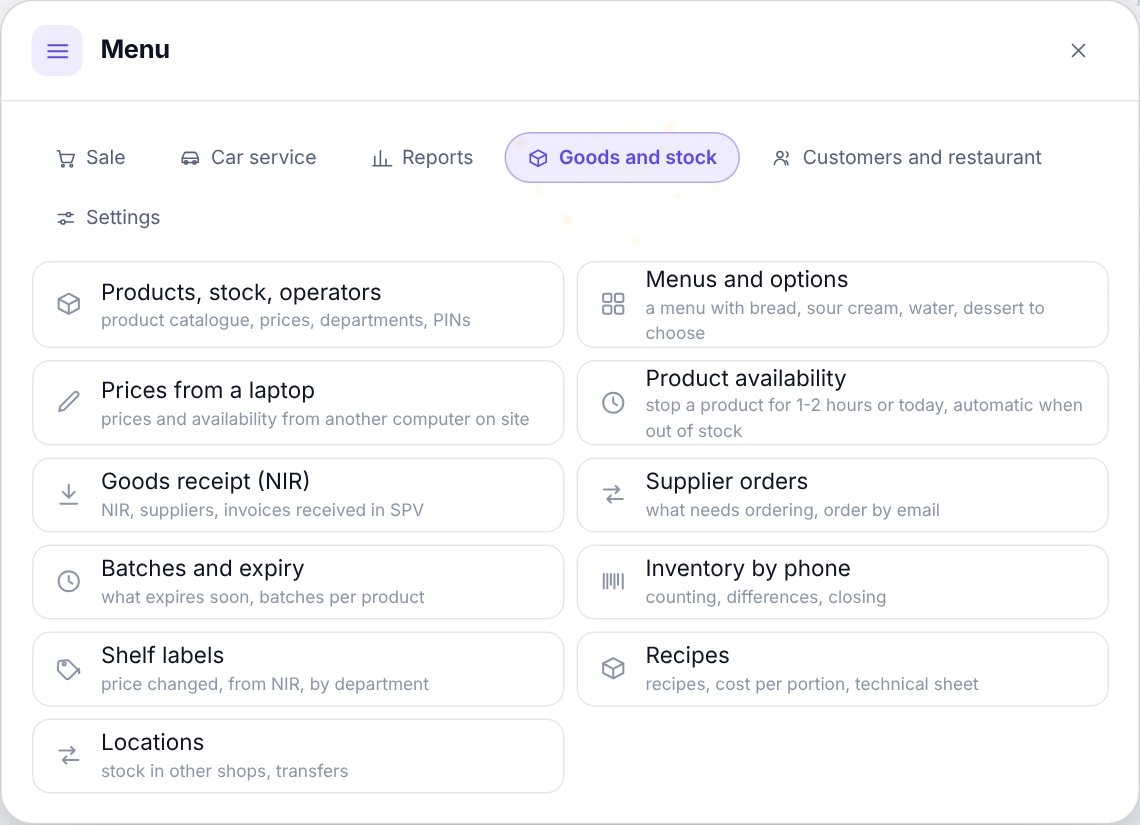
Every item has its own record: one or more barcodes, the department, the VAT rate, the unit of measure, the selling price, the minimum stock and the history of movements. Departments have a colour and a picture, so the buttons on the touch screen are recognised at a glance. Every receipt lowers the stock at once, every goods receipt raises it, and the balance is always up to date.
Items are not typed in one by one: they are brought in from Excel, CSV or SAGA, with a preview before the import. An unknown barcode scanned at the till opens a new item record straight away, so new goods enter the item list without stopping the sale.
Several barcodes on the same item.
Import from Excel, CSV and SAGA with a preview.
Minimum stock and history for every item.
Core
Fiscal printer and peripherals
Who it is for: any till that issues fiscal receipts.
RDN One talks directly to the fiscal cash register: the fiscal receipt with VAT rates and units, the buyer's tax ID on the receipt, the X and Z reports, cash deposits and withdrawals and the fiscal memory report. It works with Tremol (M20, S21, S25) and Datecs (DP-25X, DP-150X, FP-700X, WP-500X); for other models we confirm before the installation.
The bank's terminal connects to the till (Banca Transilvania SmartPay, Raiffeisen, DatecsPay and other banks): the amount goes to the terminal by itself, and the approved payment goes onto the receipt; a declined payment leaves the receipt open.
The Dibal scales, the scanner, the card terminal and the cash drawer each have a light in the top bar: green when they respond, red when they do not. Their settings are in Peripherals service, with a warning and a confirmation, so nobody changes them by mistake. A device that is switched off or unplugged reconnects by itself when it comes back.
Tremol and Datecs over the network, USB or serial.
The bank's terminal connected to the till BT, Raiffeisen, DatecsPay and other banks.
X and Z reports and deposits straight from the program.
Device status green or red lights in the top bar.
Core
Sales reports
Who it is for: owner, administrator and accountant.
The summary for a period, sales by item, by department, by cashier, by hour, by payment method and by VAT rate, each with a CSV export. You see what sells, when the queue builds up and who took how much, without adding up receipts by hand.
Z reports are kept in the program and listed for any period, with an export for the accountant. With the Stands module there is also the report by stand; with Restaurant, tips by employee.
By item, department, cashier and hour for any period.
Z reports by period, for the accountant.
Core
Operators and permissions
Who it is for: any business with several employees.
Everyone logs in with their own code and PIN. The cashier sees only the sales screen; the shift manager makes refunds, discounts and the Z report; the administrator changes prices, settings and operators. For cooks or helpers there is a "time clock only" role: they have a code and a PIN but cannot open the till.
Important actions stay in the log: who changed a price, who cancelled a receipt, who opened the drawer. After too many wrong PINs, logging in is blocked for a short time.
Cashier, shift manager, administrator each with their own permissions.
Action log for prices, cancellations and the drawer.
Core
The till the way you want it
Who it is for: any till, with or without a touch screen.
The program works with a finger on a touch monitor or with a keyboard and mouse. An on-screen keyboard appears in any box, and the receipt lines have large plus and minus buttons. You choose the F1–F12 buttons at the bottom: what each key does and what it says.
The main colour, the payment button, the background and the light or dark theme are chosen in the program, and the change shows at once for every cashier. The RO/EN button switches the till to English for employees who do not speak Romanian; the fiscal receipt stays in Romanian.
Touch screen and on-screen keyboard in any field.
Romanian and English on the same till.
Optional
Promotions
Who it is for: shops, cafés and restaurants that run offers.
Promotions have rules and the till applies them by itself: 3 for 2, the second at half price, bundles at a fixed price (for example coffee and a croissant), happy hour by hours and days, a discount on the whole receipt above an amount and coupons with a code. The cashier calculates nothing: they scan the goods and the discount appears on the line, with the promotion's name.
The discount comes out correctly on the fiscal receipt, and the report shows what each promotion cost and how much it sold. The customer display also shows how much the customer saved.
Quantity, bundle, happy hour, coupon with a period and hours.
On the fiscal receipt the discount appears correctly, per line.
Optional
Customer loyalty
Who it is for: shops and cafés with returning customers.
The customer gets a card with a barcode, made and printed from the program or coming from a print shop. With every receipt they earn points, which they use as a discount on a later purchase. The Bronze, Silver and Gold levels give bigger discounts to loyal customers, and on their birthday the customer gets a special discount.
A new customer is created right at the till, in a few seconds. Their record shows what they bought, how many points they have and which level they are on.
Customer card scanned at the till.
Points, levels and the customer's birthday applied automatically.
Optional
NIR and supplier invoices
Who it is for: any business that receives goods from suppliers.
Goods are received on a printable goods receipt note (NIR): the supplier, the invoice, the items, the quantities and the purchase prices. The program calculates the markup and the selling price, and the stock rises on validation. Suppliers are kept in the program, with the tax ID filled in from ANAF.
Supplier invoices received in SPV (RO e-Factura) are taken straight into the goods receipt, without copying line by line. Shelf labels for the goods just received are printed from the validated goods receipt.
Markup and selling price calculated on receipt.
Invoices from SPV taken straight into the goods receipt.
Optional
Supplier orders
Who it is for: shops with many suppliers and goods that run out fast.
The program proposes the order by itself: it looks at daily sales over the last weeks, how long delivery takes and the minimum stock of each item, then groups what is needed by supplier. Adjust the quantities if you want and send the order by email or print it.
When the goods arrive, the goods receipt is made from the order in one click, without typing the items again.
Proposal from sales and minimum stock by supplier.
Goods receipt from the order in one click.
Optional
Batches and expiry dates
Who it is for: grocery shops, pet pharmacies, perishable goods.
On receipt, the batch and the expiry date are written on each line of the goods receipt. When selling, the batch that expires first goes out first, and the "expiring" list shows in good time what should be discounted or taken off the shelf.
If a cashier scans expired goods, the till warns them. Goods already on the shelf when you switch on the module get their batch without the stock changing.
Batch and expiry date on the goods receipt.
Warning at the till for expired goods.
Optional
Shelf labels and stock counts by phone
Who it is for: shops with shelves and many items.
Shelf labels show the price, the unit price (per kilogram or litre) and the barcode. The "price changed" list collects by itself every item whose price changed since the last label, however it changed: from the record, from an import, from a goods receipt or from a promotion. Print the list, replace the labels and the items leave the list.
Stock counts are done with the employees' phones, on the shop's network: any number of people count at once, each in their own department, scanning with the phone's camera or with a scanner. Differences show at once, and when the count is closed the program's stock becomes the counted stock.
The "price changed" list for the labels to replace.
Several people count at once from their phones.
Optional
Invoices and RO e-Factura
Who it is for: anyone issuing invoices to companies.
An invoice is made from a receipt already paid or from scratch. The client company's details are filled in from its tax ID, from ANAF, and the invoice is printed on A4 and sent to SPV as an RO e-Factura file, straight from the program. Cancellations (storno) are made from the original invoice.
If you already invoice in SmartBill, Oblio or FGO, RDN One sends the invoice there, and the invoicing program takes it on to SPV, the way you are used to.
Invoice from a receipt or new with the company's details from ANAF.
SPV directly or through SmartBill, Oblio, FGO whichever way you work.
Optional
Restaurant: tables and orders
Who it is for: restaurants, bars, cafés, terraces and fast food.
Tables are arranged by area (dining room, terrace, bar), and each table shows by its colour whether it is free, taken or reserved. The waiter opens the table, adds the order and sends it: dishes go to the kitchen, drinks to the bar, each to the printer or screen of its station. The bill is printed with the tip options, and it can be split between customers.
The module also brings reservations (who is coming, when, how many, at which table), tips on the fiscal receipt with records per employee, the kitchen screen with the minutes of each order and numbered orders for fast food, with the customers' TV screen and order tracking on the phone.
Tables by area and orders to kitchen and bar on printers or on a screen.
Reservations and tips on the receipt with records per employee.
Numbered orders eat in or takeaway, with the customers' TV screen.
With Restaurant or Kiosk
Order tracking on the phone (QR code)
Who it is for: fast food, food courts and any venue with numbered orders.
The customer scans the QR code on the receipt, on the kiosk or on the till's customer display and sees on their own phone the order number and its status: being prepared, ready. In a food court they see each stand separately and know where to collect. No app, no account and no SMS: the page works on the customer's mobile data too.
When the order is ready, the phone rings and shows a notification, even with the screen off. At pickup, the message closes by itself and the notice disappears. The till sends only the order number and status, with no products, prices or names. Datecs X-series cash registers print the QR code on the fiscal receipt; the others print the page's short address.
On the receipt, the kiosk and the display each with its own switch.
Notification when ready and automatic closing at pickup.
Optional
QR code menu
Who it is for: restaurants, terraces, cafés and bars with table service.
Each table has its own QR code, printed from the program. The customer scans it, sees the menu on their phone, with weight, allergens, options and sizes, and sends the order. The waiter sees it in the till, accepts or refuses it, and the accepted order goes to the kitchen and the bar like any other order for that table.
Products paused at the till show as unavailable on the phone menu too, and the prices are always the till's prices. Payment stays at the table, with the waiter.
Menu on the phone, no app with weight and allergens.
The waiter confirms before the order goes out.
Optional
Self-service kiosk
Who it is for: fast food, food courts and venues with a queue at the till.
The customer orders alone on a SUNMI screen: chooses eat in or takeaway, sees the products with photos, weight and allergens, picks the options and the size, then sends the order. They get a number and pay at the till by saying the number, or pay by card right at the kiosk, which has its own cash register and card terminal.
The paid order goes to the kitchen by itself, and the number appears on the customers' TV screen. The kiosk returns to its start screen on its own, and a customer who stops touching the screen is asked whether they need more time.
Payment at the till or by card at the kiosk as you choose.
Menus with options and sizes just like at the till.
Optional
Stands (food court)
Who it is for: a single company with several stands in one place.
The customer pays once, at the till or at the kiosk: one fiscal receipt, one number. The order splits by itself between the stands, by each product's department (pizza to the Pizza stand, the burger to Burger, drinks to the Bar). Each stand sees only its own part on its screen.
When a stand finishes its part, the number appears on the shared TV with "collect at Pizza", even if another stand is still working. Each stand hands over its part separately, and the sales report by stand shows how much each one sold.
One receipt, several stands the order splits by itself.
Report by stand receipts, pieces, sales.
Optional
Recipes
Who it is for: kitchens, pastry shops, pizzerias and cocktail bars.
The recipe says what leaves the stock for one portion: 0.250 kg of meat, 0.080 kg of onion, one bun. When the dish is sold the ingredients are deducted, not the dish, and on a refund they come back. Semi-finished items (a sauce, a dough) have their own recipe and break down by themselves into raw materials.
The program shows the cost per portion and the printable recipe card, with weight and allergens. When an ingredient runs out, the dish can be paused from sale automatically.
Ingredients deducted on sale and semi-finished items.
Cost per portion and recipe card with allergens.
Optional
Deliveries
Who it is for: restaurants, pizzerias and fast food with delivery.
A delivery is an order without a table: the customer, the address, the phone number, the courier and the order status (being prepared, out for delivery, delivered). The order goes to the kitchen like any other, and the delivery slip is printed for the courier, with the address and what to collect.
Orders from Glovo, Wolt and Bolt Food come into the till by themselves, with the products linked to your item list, so you no longer type them in by hand from the platforms' tablets.
Address, courier and status for every order.
Glovo, Wolt, Bolt Food orders come in by themselves.
Optional
Online shop connection
Who it is for: shops that also sell on a website.
RDN One connects to an online shop built on WooCommerce (WordPress) or Shopify. The till's stock and prices reach the website, so you do not sell online what is no longer on the shelf.
Website orders come into the till, for shipping or collection in store, and their goods leave the stock like any sale. The connection works only over an encrypted link (https).
WooCommerce and Shopify stock, prices, orders.
Optional
Owner app
Who it is for: the owner who is not in the shop all day.
The owner sees on their phone, from anywhere, what is happening at the till: today's sales and sales by hour, payments, the cash in the drawer, Z reports, the best-selling items, the cashiers, stock below minimum and alerts. With the right modules they also see who is at work now, today's reservations and sales by stand.
The app only shows: nothing in the till can be changed from it. Data leaves the till encrypted, and a remembered phone can be removed at any time by changing the password.
Sales, payments, Z, drawer, stock on the phone, from anywhere.
Read only nothing is changed from the app.
Optional
Stock management reports
Who it is for: the accountant and the administrator.
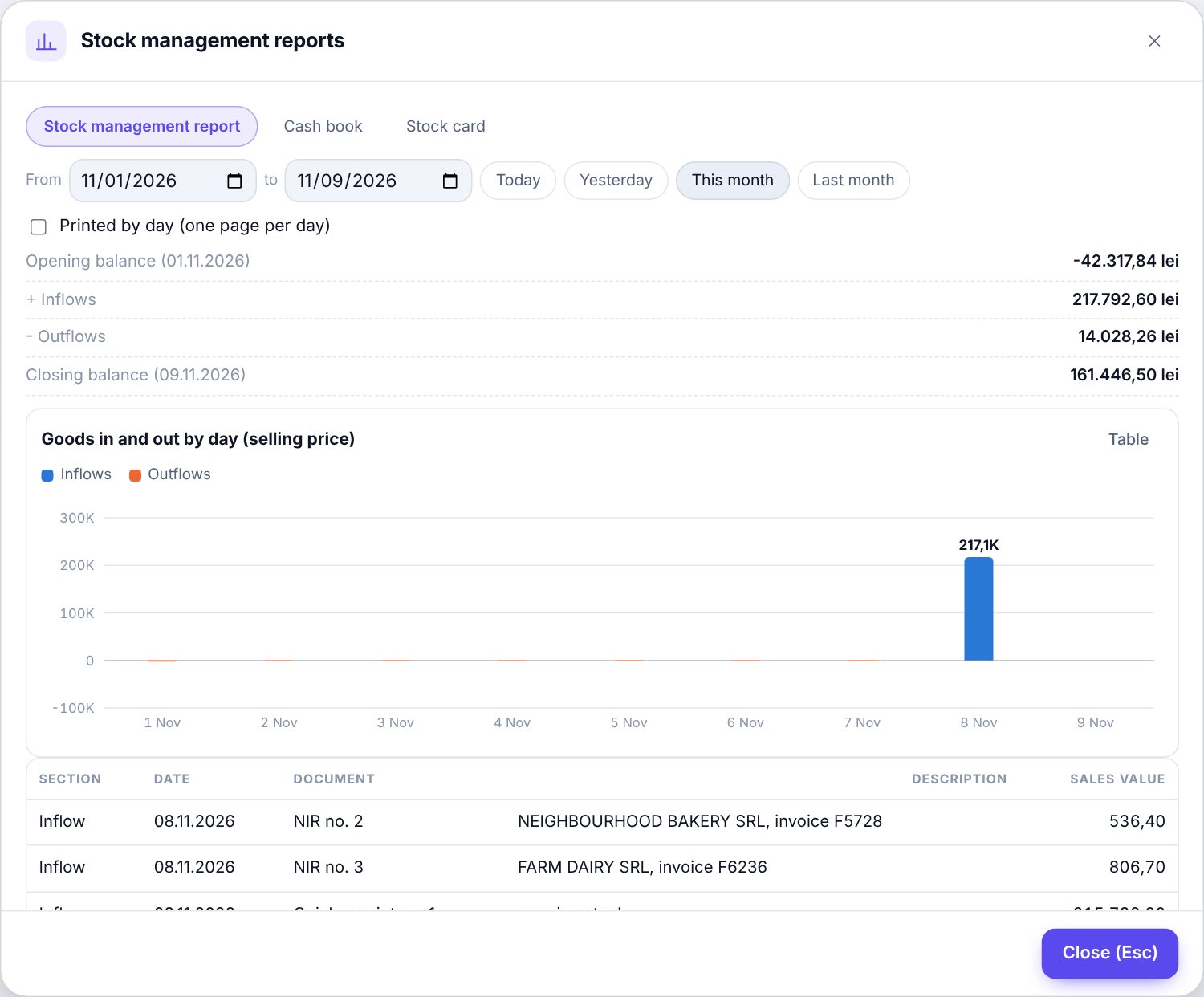
The inventory report at selling price (opening balance, goods receipts in, sales out, closing balance), the cash register book day by day and the stock card of each item, with the stock after every movement.
Print them on A4 or send them to Excel, for any period. The accountant gets what they need without you copying anything from another program.
Inventory report, cash book, stock card on A4 or in Excel.
Optional
Cloud backup
Who it is for: any business that does not want to lose its data.
The copy of the till's data is encrypted on the till itself and goes to the RDN Network Data server. It is made when the till is not in use, and selling does not stop. On the way and on the server, the copy stays encrypted.
If the disk or the computer breaks, the program is installed on a new computer and the data is restored from the copy: items, stock, customers, reports.
Encrypted on the till before it leaves.
Restore on a new computer with all the data.
Optional
Customer display
Who it is for: shops and venues where the customer stands at the till.
The second screen, facing the customer, shows the products as they are scanned, the total, the discounts, then the change and a thank-you. When the till is idle it shows the logo, the shop's name and the messages you choose.
It works on the computer's second monitor or on a tablet on the network. After paying for a numbered order, the display can also show the QR code for tracking the order on the phone.
Receipt, total and change in real time.
Optional
Multiple locations
Who it is for: chains of shops belonging to the same company.
Each shop has its own till, with its cash register connected there, and the tills connect to each other over the internet. From any till you see an item's stock in the other shops and everyone's sales in one place.
Goods move between shops with a transfer and a delivery note, and the stock falls in one location and rises in the other. For the chosen day, you see each shop's sales side by side: receipts, sales, average receipt, markup, cash and card, plus the total for all.
Stock in the other shops from any till.
Transfers with a delivery note between locations.
Optional
Car service
Who it is for: car services, tyre shops, motorcycle and machinery workshops.
The car is checked in with the mileage, fuel, photos and the customer's signature on the tablet. The estimate has labour from standard hours, parts from stock and materials, and the customer approves it by signing or remotely, by phone, on WhatsApp, by SMS or by email.
Mechanics work on a tablet, with no prices, with time clocked on each job. At handover the invoice or the fiscal receipt comes out, and the job goes into the register for RAR. Appointments by lift, services by date or mileage, reminders by SMS, WhatsApp or email and profitability reports by job, mechanic, customer and part.
Mechanics on tablets no prices, time clocked.
RAR register ready for the platform.
Included in every option
Features that work without a separate module.
Besides the core, these features are on every RDN One till, whatever modules you choose.
Core
Menus with options and sizes
Compulsory or optional option groups, with a menu price, and sizes with their own price. At the till, on the kiosk, at the tables and in the QR menu.
Core
Availability and scheduled products
Products paused for 30 minutes, an hour or the rest of the day, paused automatically from stock, and selling schedules by the hour.
Core
Prices from a laptop
Prices and paused products are changed from a laptop on the premises' network, with a history of every change.
Core
Time clock
Clock in and out with code and PIN, who is at work now, hours per employee and the monthly attendance sheet.
Core
Examples in the boxes
A grey example in every box and an EXAMPLE row in empty lists, for new employees. They are hidden when no longer needed.
Core
Romanian and English
An RO/EN button on the till, for employees who do not speak Romanian. The fiscal receipt stays in Romanian.
Stock management reports
What the accountant needs, without copying anything.
The stock management report at selling price, the cash book and the stock card, for any period. You print them on A4 or send them to Excel.
The stock management report opening balance, inflows from NIR, outflows from sales, closing balance.
The cash book cash receipts and payments, day by day.
The stock card each product's inflows and outflows, with the stock after each movement.
The till's look
The till looks the way you want.
Each shop chooses the till's colours and the bottom buttons. The change shows straight away, for all cashiers.
The main colour and the pay button from the palette or any other colour.
The background and the theme light or dark, depending on the light in the shop.
Press effect the button you touch lights up and a few fireflies fly out from where you pressed; you can also choose a light ripple, a halo or no effect.
The F1–F12 buttons what each key does, its name and extra buttons.
In short
Which modules suit you.
Business
Recommended modules
Shop, minimarket
Core + Promotions, Loyalty, NIR, Supplier orders, Shelf labels, Inventory by phone, Invoices and e-Factura
Shop with perishable goods
The shop bundle + Batches and expiry dates
Shop with a website
The shop bundle + Online shop connection (WooCommerce, Shopify)
Restaurant, bistro, bar
Core + Restaurant, QR code menu, Recipes, NIR, Invoices and e-Factura
Restaurant with deliveries
The restaurant bundle + Deliveries (including Glovo, Wolt, Bolt Food)
Fast food, burger bar, kebab shop
Core + Restaurant (numbered orders, kitchen and customer screens), Self-service kiosk, Recipes, Invoices and e-Factura